
How to use this site
The new Earther Academy in ten minutes
Welcome. The Academy has a new home, and it was built around one idea: you should never feel lost in it. Over 268 courses is a lot of knowledge, so the site now helps you find what you need, remembers where you stopped, and keeps the things that matter to you in one place.
This page walks you through it in four short steps. Take ten minutes, and you will know your way around.
Robert Cassar
Everyone starts at step 1. Tools that come with membership are marked with a padlock.
Step 1 · Find
Find any course in seconds
Everything Robert teaches is in the Courses library. Start there, or use search when you already know what you are looking for.
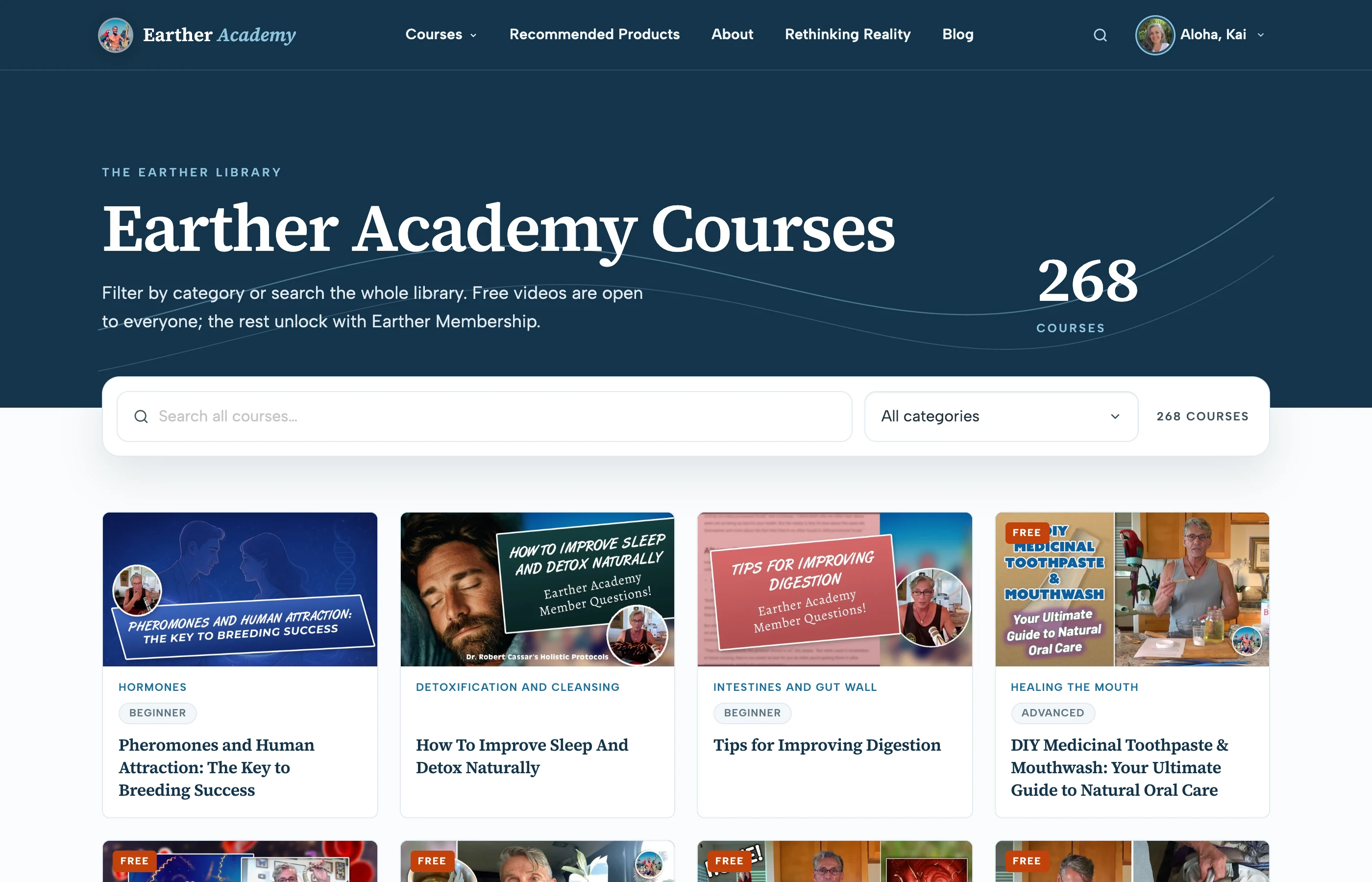
Search the library. Type a word, like "lymph" or "parasites", and the list narrows as you type.
Filter by topic. Choose a category from the list next to the search box to see only the courses on it.
Or browse by topic
The Courses menu at the top of every page lists the topics, from detox and the lymphatic system to nutrition and gardening. Pick one and you see every course on it. The same menu also lists the courses by level (Beginner, Intermediate and Advanced), and Free Videos shows every course with free parts, open to everyone.
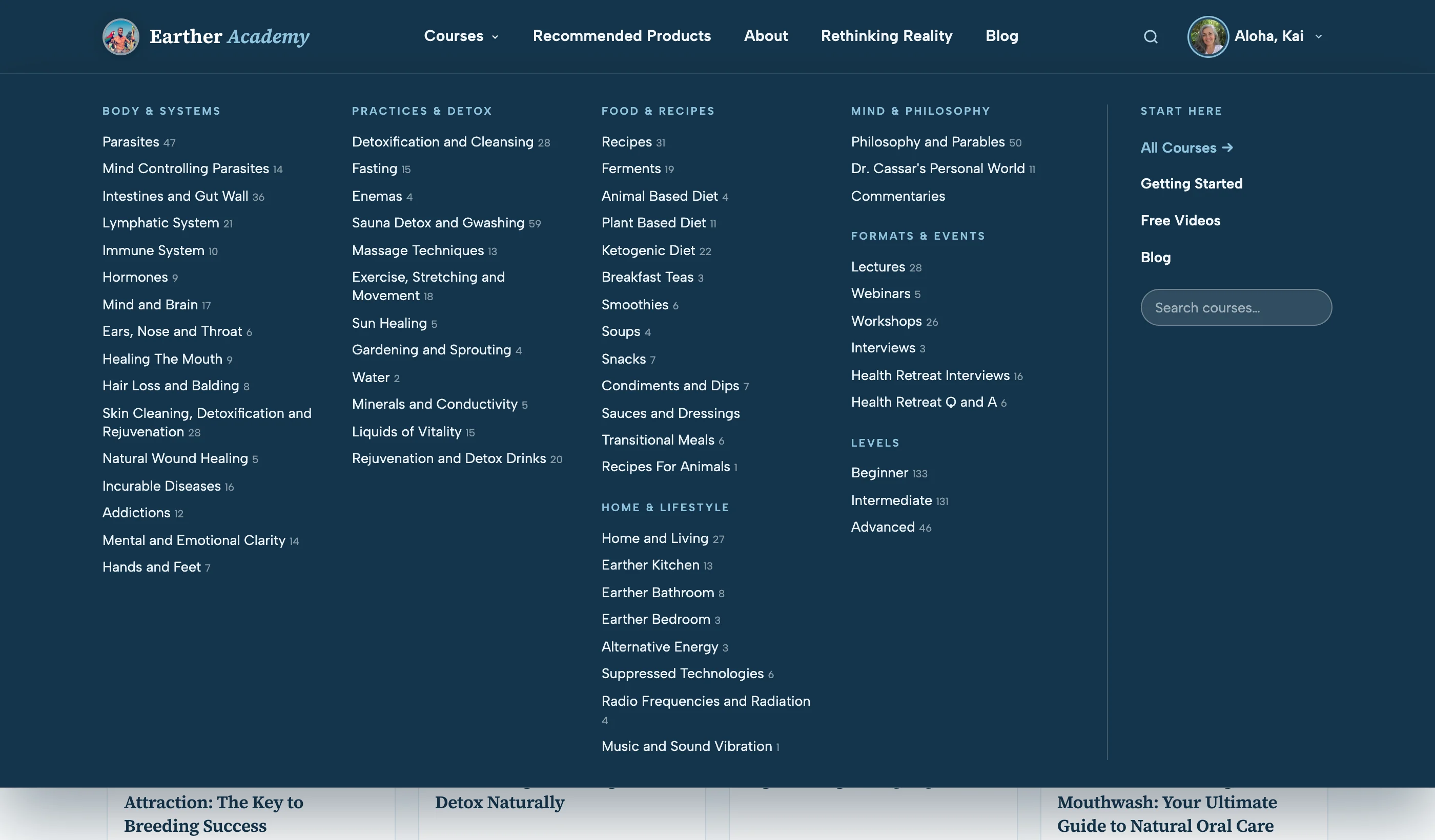
1 Topics · 2 Levels · 3 Free Videos
Search the whole site
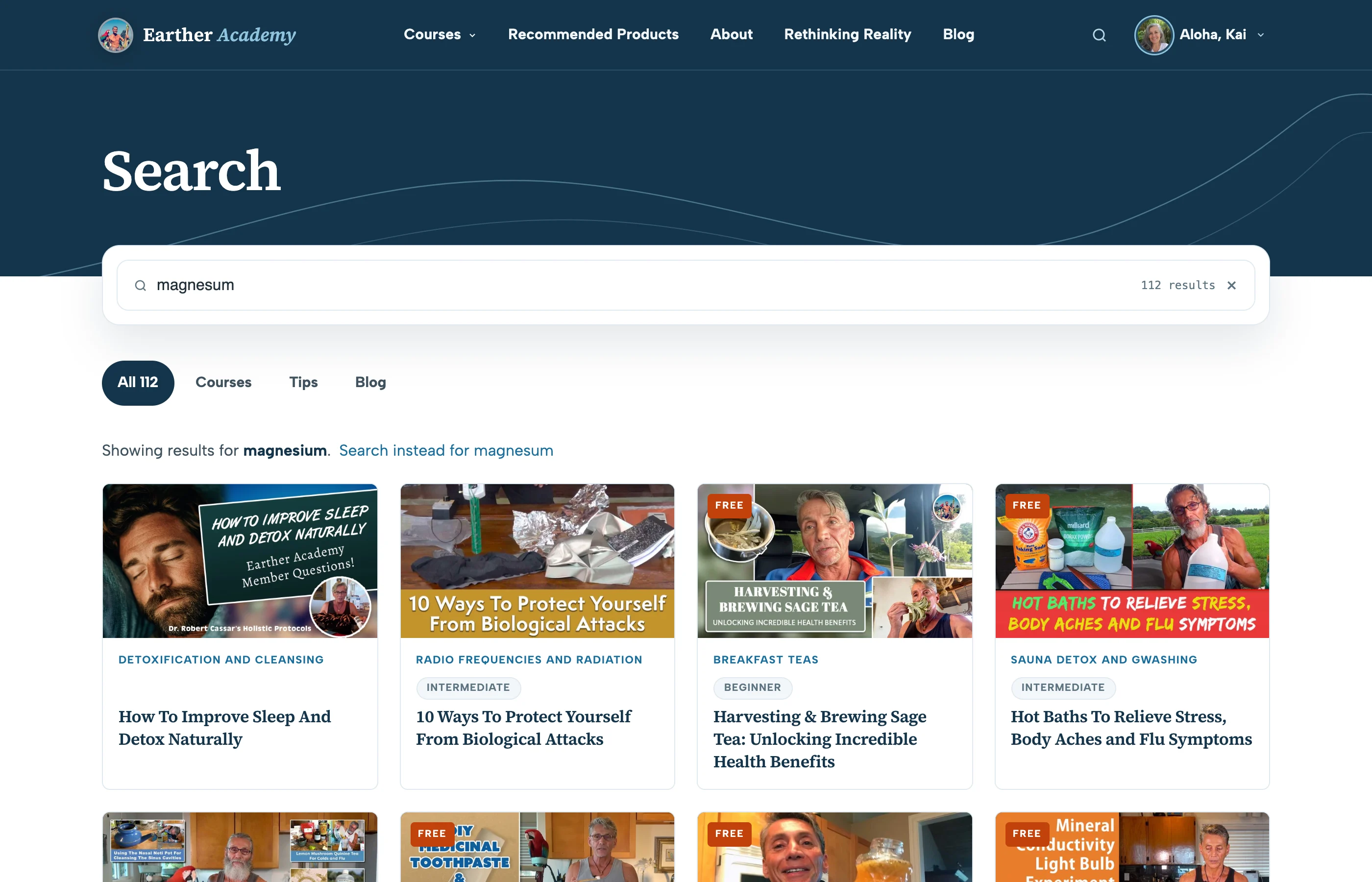
The search page looks through courses, Tip of the Day and the blog at once, and shows results as you type. It also forgives spelling: search for "magnesum" or "diatomacious earth" and it shows what you meant, with a link to search your exact words instead.
Shorter watching
Short on time? Rethinking Reality and Tip of the Day are libraries of short episodes, each one a single idea you can watch in a few minutes.
Step 2 · Watch
Watch a course from start to finish
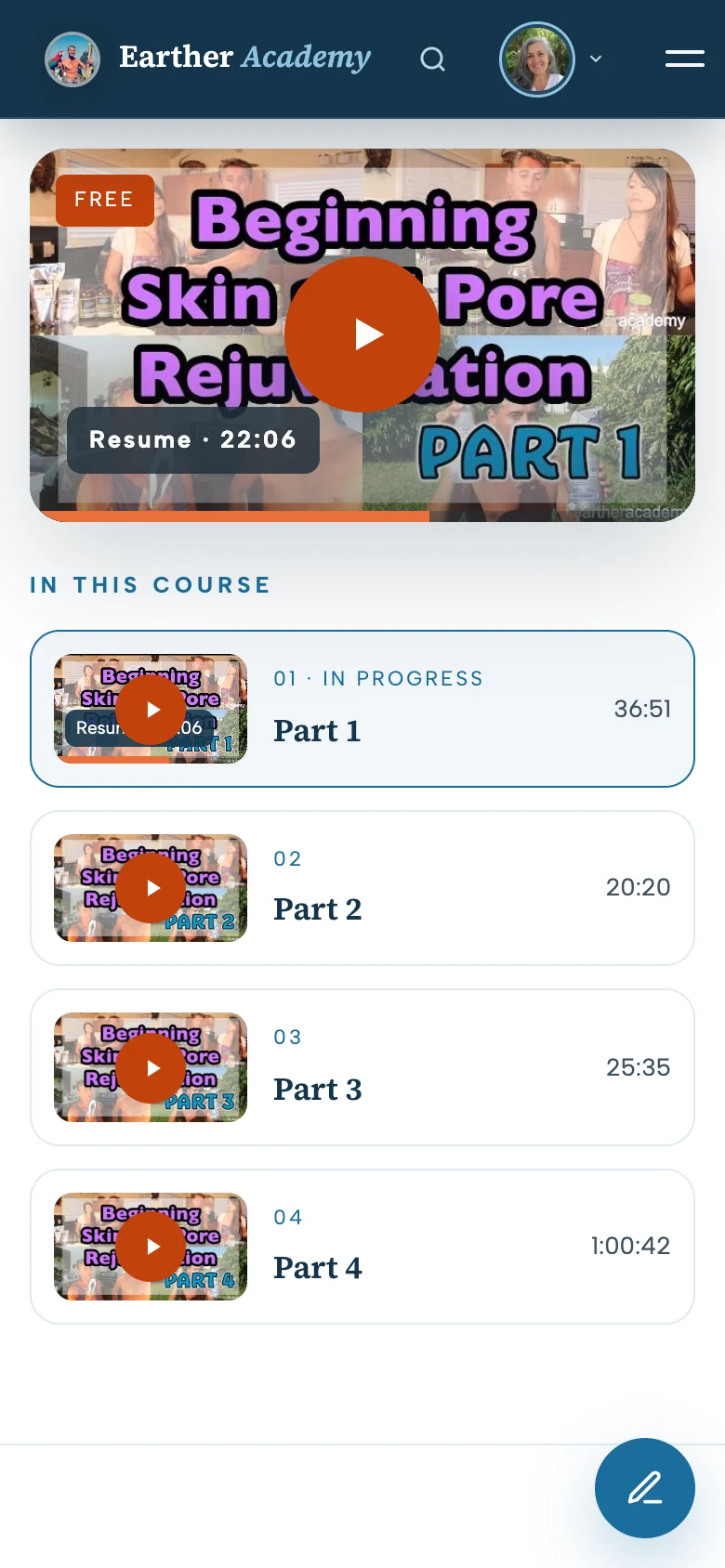
Every course page has the video at the top and the whole course listed beside it, so you always know where you are.
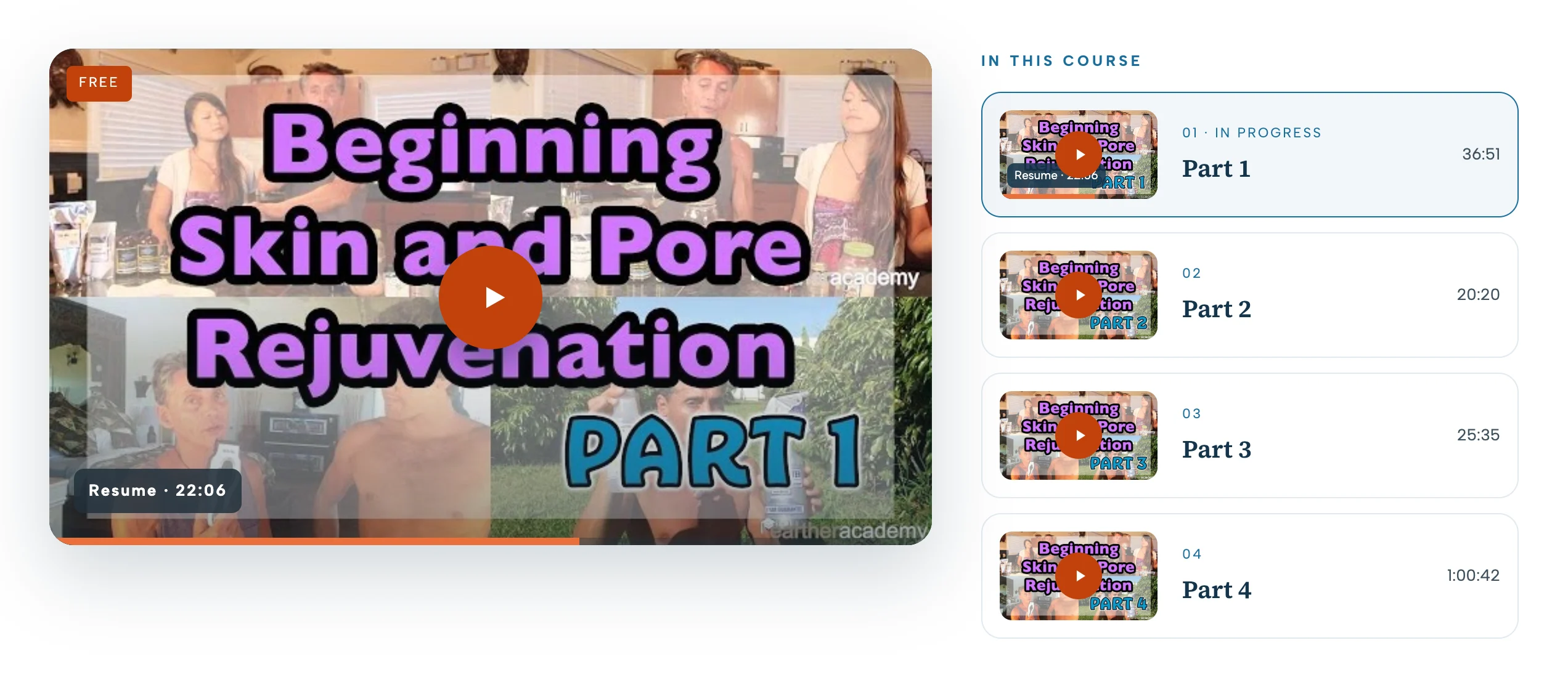
"In this course" is your playlist. Every part is numbered. Tap any part to play it.
FREE parts are open to everyone. The other parts are for Earther Members.
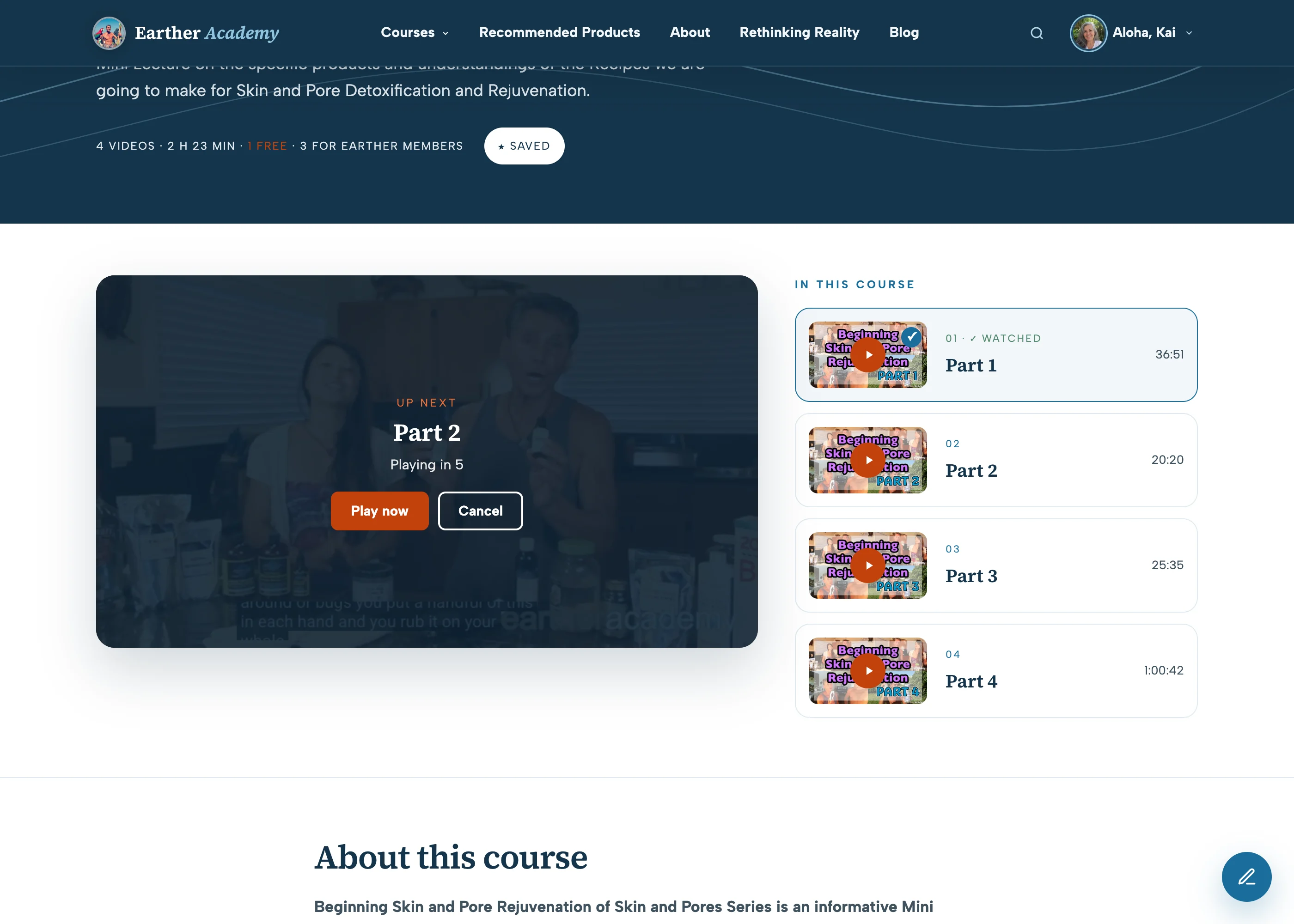
The next part starts by itself. When a part ends, an "Up next" box counts down five seconds and plays the next one. Choose "Play now" to skip the wait, or "Cancel" to stay where you are.
Pick up exactly where you left off
Stop a video halfway, and the site remembers the exact second. Next time, on your computer, phone or tablet, the course opens on the part you were watching and shows "Resume" with the time. Press play and you carry on.
For Earther Members. Remembering your place is one of the member tools. With a free account you can watch every free part; your place is not saved.
Step 3 · Keep
Keep what matters to you
Three small tools stop good things getting lost.
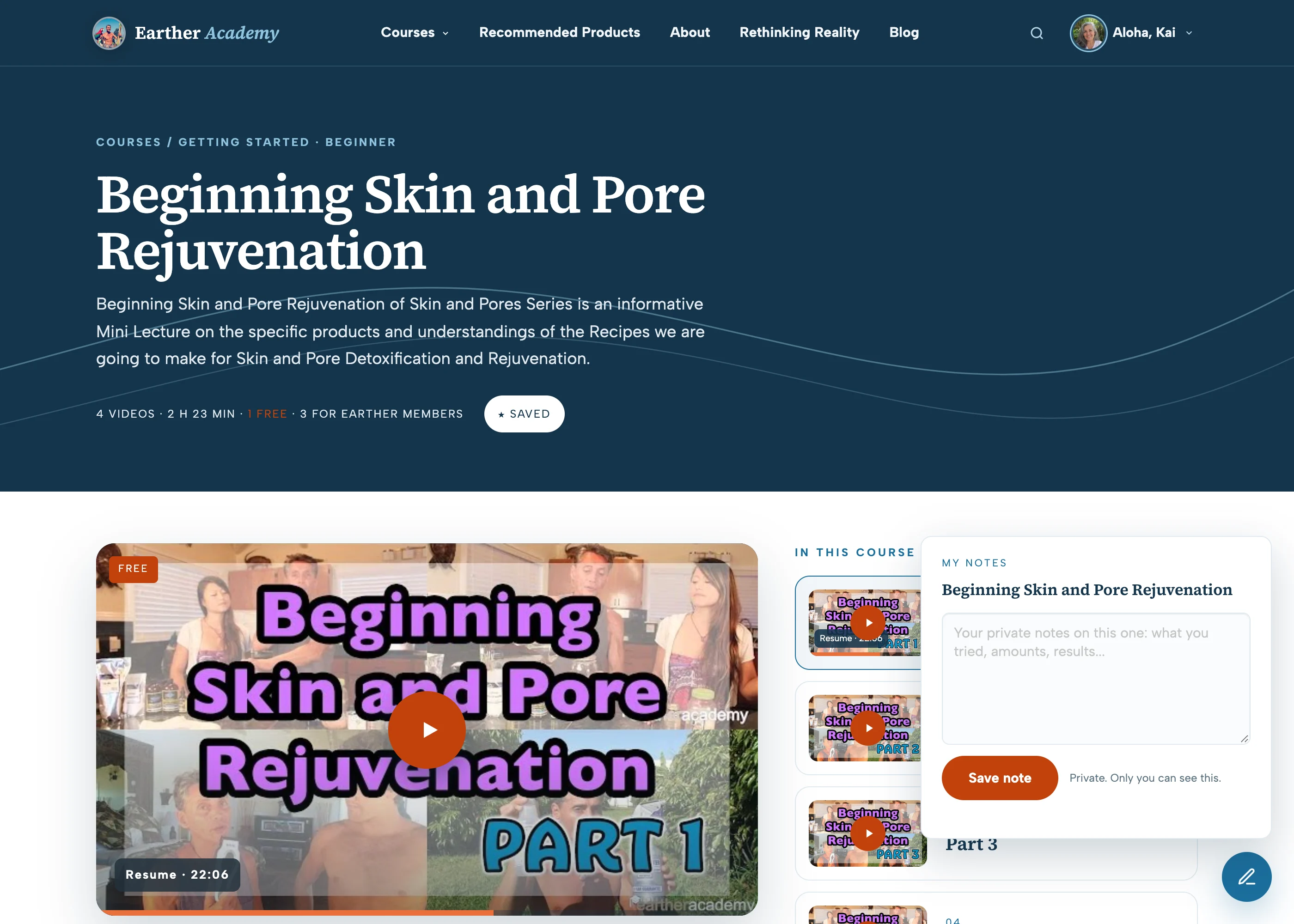
Save for later. See something you want to come back to? Press ☆ Save for later on any course, episode or article. It turns to ★ Saved, and everything you save waits for you in the Member Hub under Saved.
Write a private note. The round pencil button in the corner of every course, episode and article opens a small notepad. Write down a recipe, a dosage, or how you felt after trying something. Your notes are private: only you can see them. They are all collected in your Notebook, each one linked back to where you wrote it, and you can write free-standing notes there too.
See what you have finished. When you watch a part to the end, it gets a ✓ Watched mark in the playlist, so you can see at a glance how far you have come.
Have a free account? You will see Save for later with a small padlock. Saving, notes and your watching history are part of Earther Membership, which is $10 a month.
Step 4 · Make it yours
Make the Member Hub yours
The Member Hub is your home on the site. Open it any time from Membership at the top of the page.
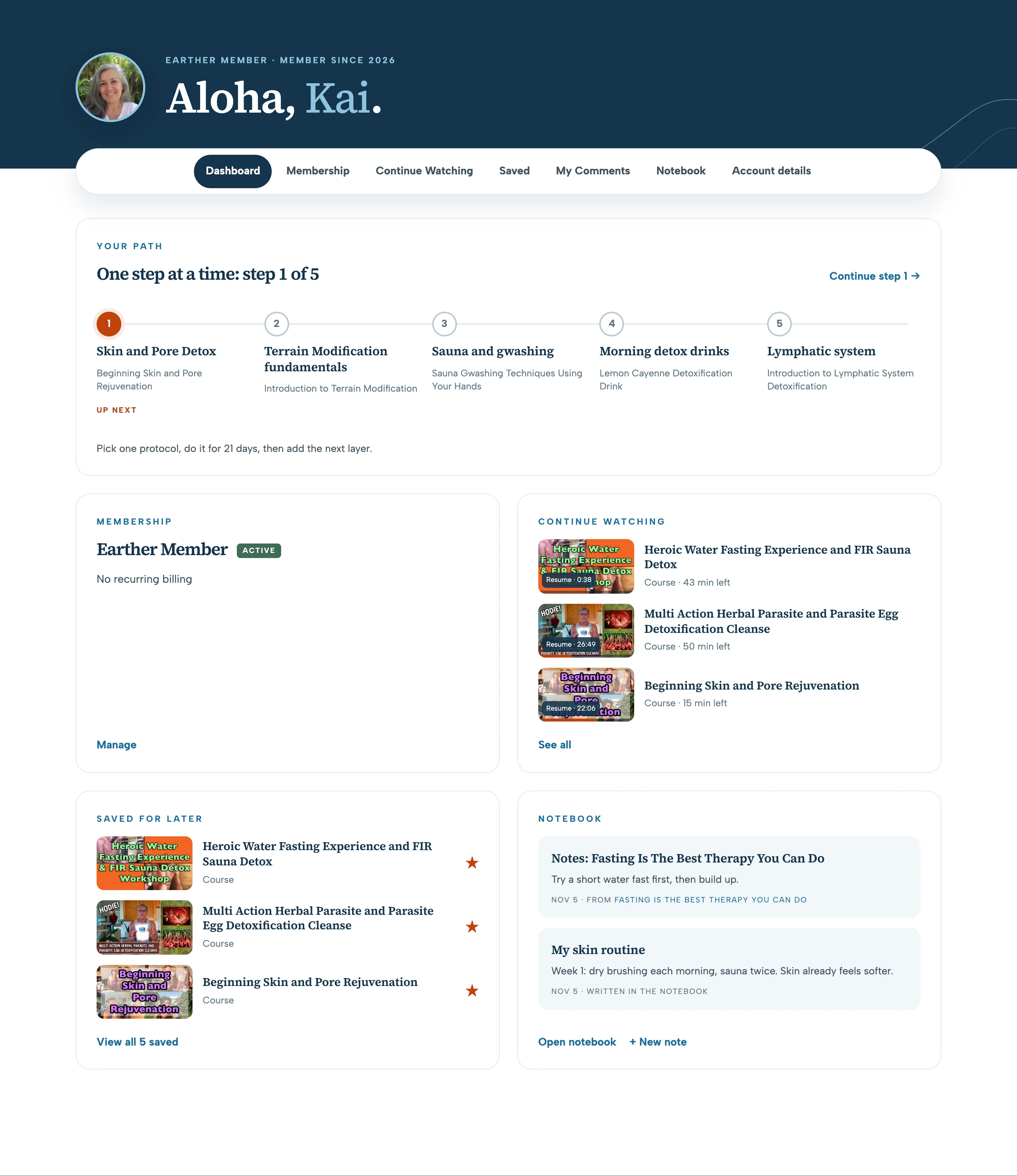
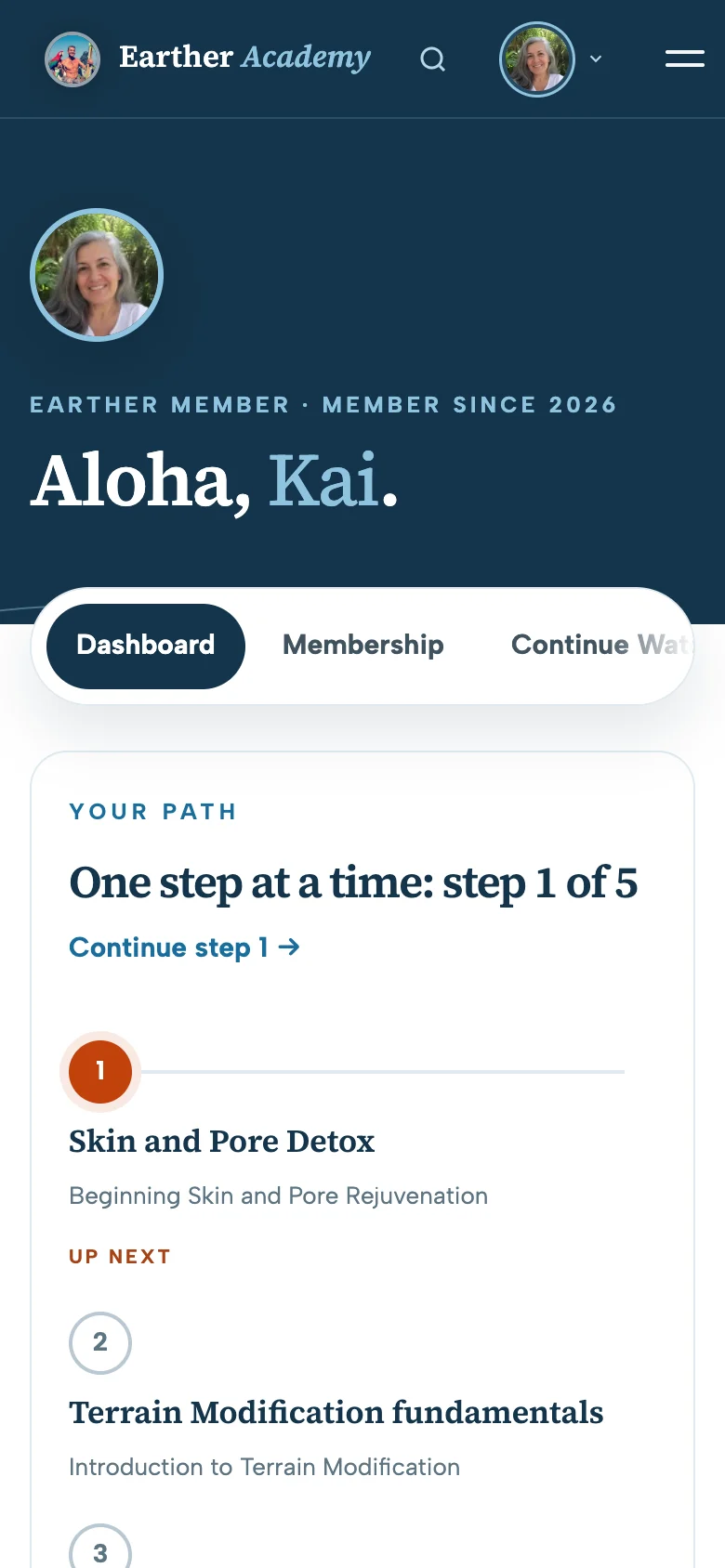
Your Path. Not sure where to start? Robert chose five first steps, from skin and pore detox to the lymphatic system. Your Path shows which step you are on; press "Continue" to go straight to it. Robert explains why each step comes in that order on Getting Started.
Continue watching. The videos you started, with the time you stopped.
New since your last visit. When there is something new, the courses and episodes added since you were last here appear on your dashboard.
The tabs. Saved and Notebook hold what you kept. My Comments shows everything you have written on the site, and replies to you. Account details is where you change your email, password or photo, and turn the newsletter on or off. Membership shows your plan and invoices, and is where you update your card or cancel.
Add your photo
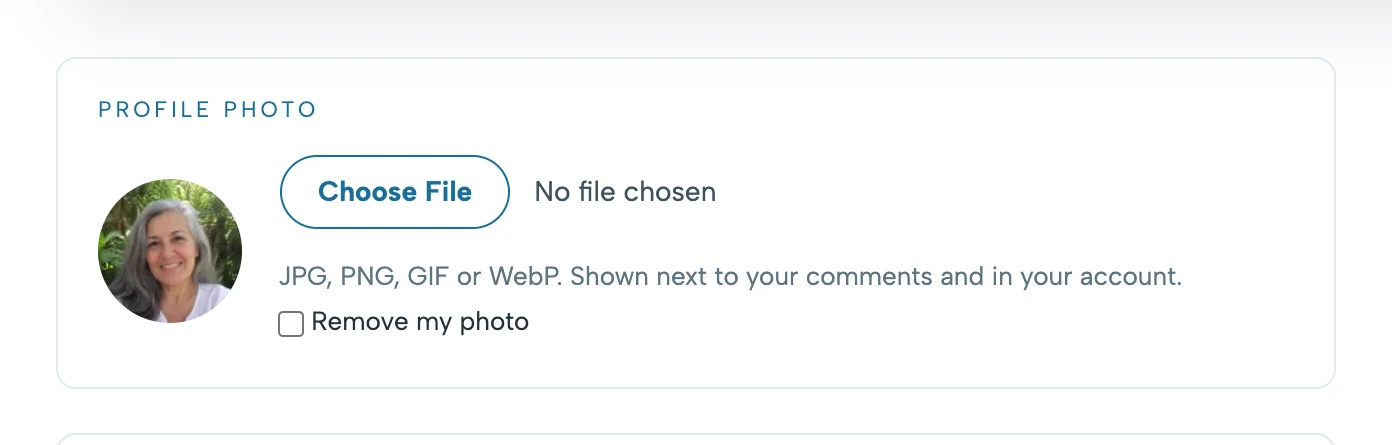
Earther is a community, and a face makes it feel like one. In the Member Hub, open Account details, choose a picture under Profile photo and save. Your photo then appears at the top of the site when you are signed in, on your Member Hub, and next to every comment you write, so other members know who they are talking to.
Add my photo
Products Robert recommends, and your discount
On Recommended Products you can search the products Robert uses and suggests. Earther Members also get 25% off everything at Earth Shift Products.
Your first ten minutes
Three small things to do now
If you are a member
- Open the Member Hub and press Continue on Your Path step 1.
- Press ☆ Save for later on one course you have been meaning to watch.
- Write one note about something you want to remember.
Got one more minute? Add your photo, so other members can put a face to your name.
If you have a free account, or are just looking
- Watch one of the free videos.
- Search for a topic you care about and see what Robert has on it.
- When you are ready, see what membership adds.
"Will I actually use it?"
It is a fair question. Most people do not stop learning because they lose interest. They stop because there is so much that they lose their place. That is exactly what the new site fixes: it keeps your place, keeps your notes, and shows you the next step.
Still stuck?
We are happy to help. Ask us a question, and a real person will answer.